
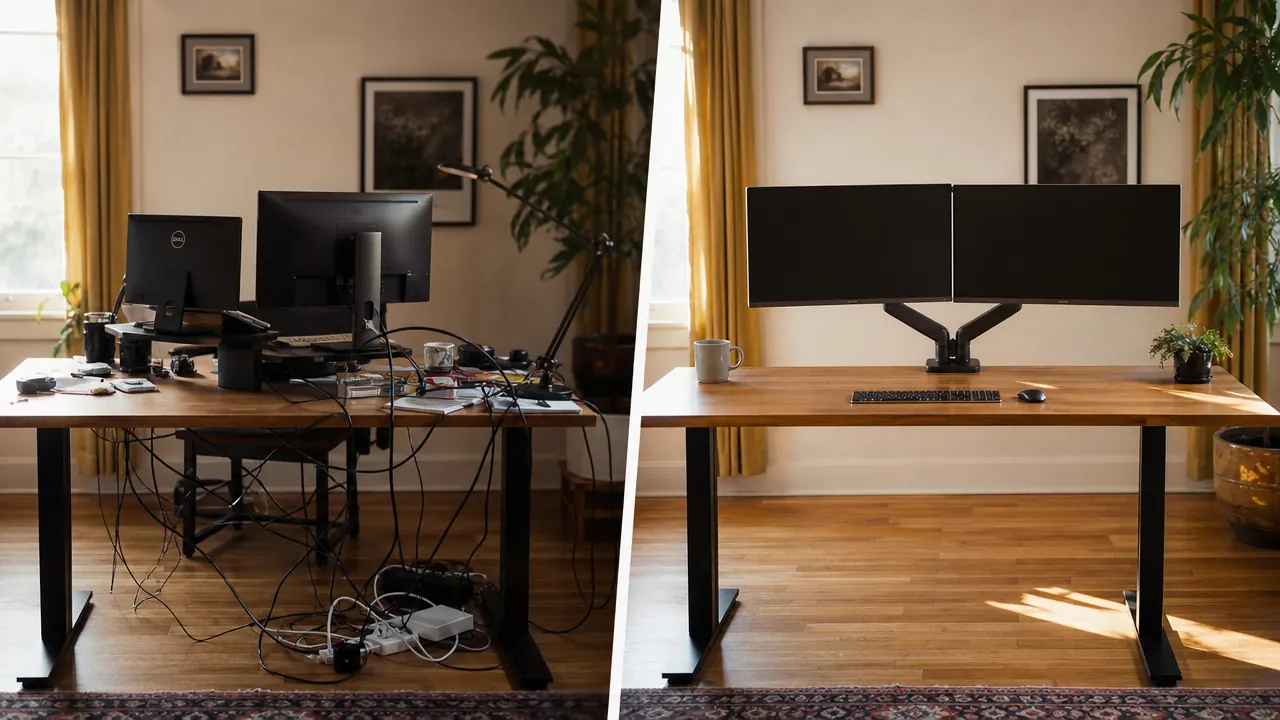
Let me tell you about the three reasons people return the HUANUO dual monitor arm. Not because it is a bad product. It is genuinely a good one, which is how it earned the top spot in its category with 34,000 reviews. The returns happen because buyers skip three paragraphs of the product listing and find out the hard way. I want to walk you through those three things before anything else, because if any of them apply to your situation, knowing now saves you a return label later.
The short version: your desk edge might be too thick for the C-clamp, your monitors might be heavier than the arm expects, and the tension adjustment on arrival will confuse you if you think this is a gas-spring arm. It is not. It is a spring-tension arm, which behaves differently and requires a different setup process. None of these are fatal flaws. All of them are things the 34,000 reviewers mostly figured out after the fact. You will know before you open the box.
The Quick Verdict
A well-built dual monitor arm that earns its bestseller status, with real limitations around desk thickness and heavier panels that the listing undersells. Know the gotchas going in and it will serve you well.
Amazon Check Today's Price →If your desk edge is under 2.2 inches and your monitors are under 13 lbs each, this arm probably fits your setup.
The HUANUO supports 13 to 32 inch screens on a no-drill C-clamp base and ships with everything you need for a 30-minute install. Check current pricing before you buy.
Amazon Check Today's Price on Amazon →How I Tested This Arm
I mounted the HUANUO on a 60-inch laminate desk with a 1.8-inch edge and ran it with two monitors: a 27-inch Acer weighing about 11.5 pounds and a 24-inch Dell at just under 8 pounds. Combined weight of around 19.5 pounds, well within the rated limit. I also borrowed a pair of heavier 32-inch panels from a friend for a week to test how the arm handles a heavier load. That test is where things got more instructive. The arm held, but the experience was different enough that I want to document what changed.
I also spent about two hours reading one-star and two-star reviews on Amazon before writing this, which is something I do with every product I review. The negative reviews are almost always more informative than the five-star ones. In this case, a clear pattern emerged: the complaints cluster around three specific scenarios. I will cover each one in its own section so you can evaluate which, if any, applies to you.
Total time with the arm before writing this: about three months of daily use. I moved my setup twice during that period, which meant removing and reinstalling the clamp and resetting the tension from scratch. That process taught me more than the initial install did.
The Desk-Edge Thickness Problem Nobody Warns You About
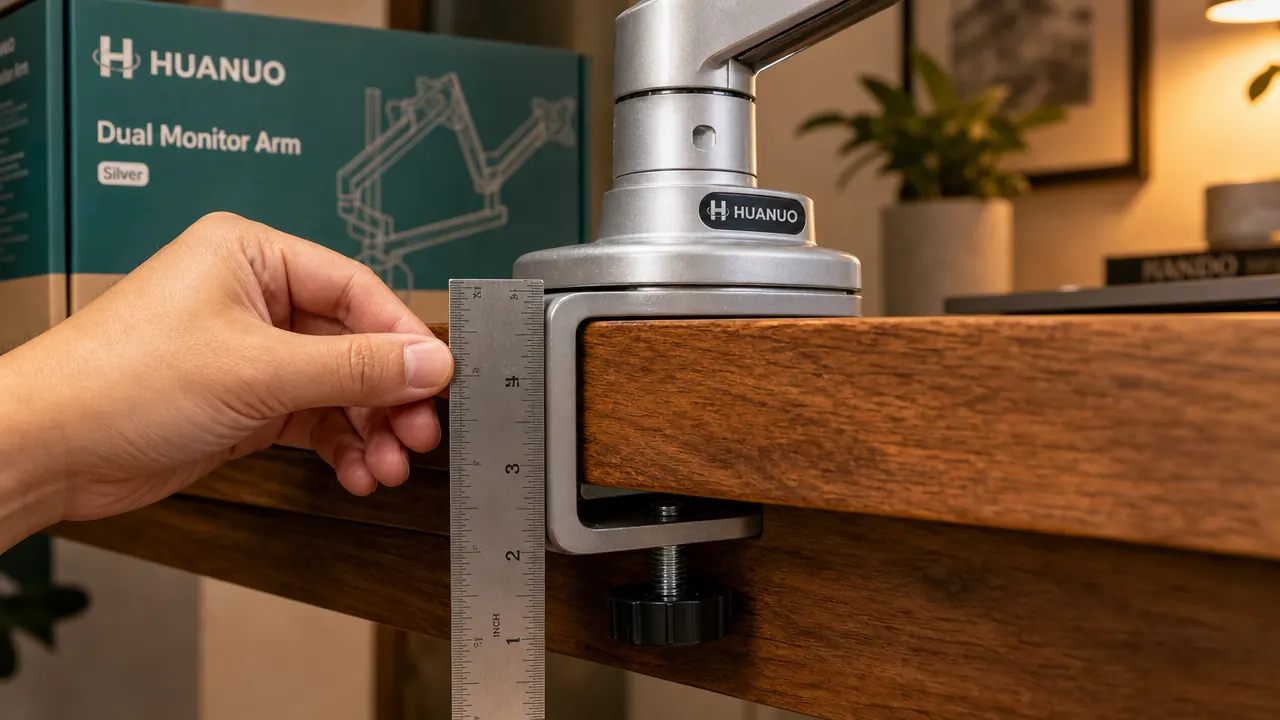
The listing says the C-clamp fits desks up to 3.54 inches thick. In practice, that maximum assumes a flat, unobstructed desk edge with no lip, no rear rail, no beveled overhang, and no frame element that blocks the clamp jaw from seating fully. A lot of desks have at least one of those things. If yours does, your effective clearance is lower than the spec, sometimes by an inch or more.
The most common scenario I see in negative reviews: standing desks with a front rail or structural lip under the surface. The clamp physically fits around the edge, but the bottom jaw can only get partial contact because it hits the frame. The arm technically mounts, but the grip is weaker than it should be and the base can shift laterally under load. If you have a frame-based standing desk like a FlexiSpot or an Uplift, look underneath the front edge before you assume the clamp will seat the way it does on a solid-slab tabletop.
The fix for most of these cases is the grommet mount, which is included in the box. It requires a hole in the desk surface of about 1.25 inches in diameter, which is not a problem if you own the desk and have a drill. If you are renting or working on a shared desk, that may not be an option. Know your desk situation before you order. The clamp is great on a flat laminate or solid-wood top with a clean edge. On anything with frame interference, measure and confirm.
Monitor Weight and VESA: The Numbers That Actually Matter
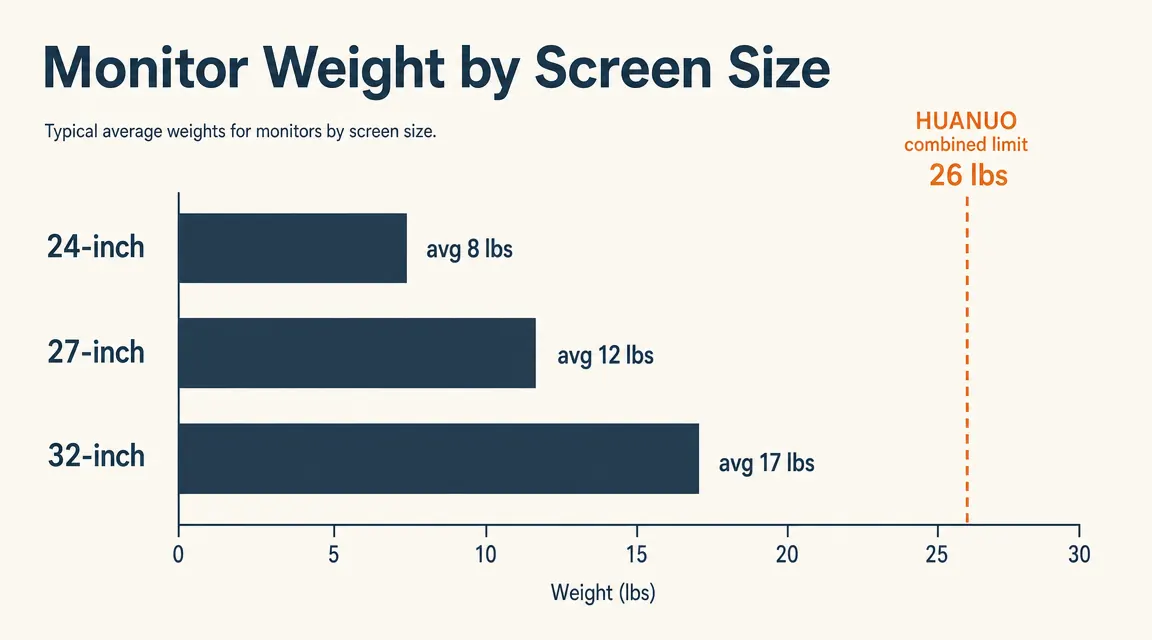
The arm is rated for monitors from 13 to 32 inches. What the listing leads with is the size range. What it buries is the per-arm weight limit, which is the number that actually determines whether your specific monitors are a good fit. Each arm on the HUANUO is rated for up to 13.2 pounds. That means a combined maximum of roughly 26 pounds across both screens.
Two 24-inch monitors typically come in between 7 and 9 pounds each, which puts you well under that limit. Two 27-inch monitors usually land between 10 and 13 pounds each, so you are right at the edge of the comfort zone with heavier 27-inch models. Two 32-inch panels are a different situation entirely. A heavy 32-inch monitor can run 17 to 20 pounds on its own, and some curved gaming panels are heavier. Put two of those on this arm and you are asking it to hold well past its rated capacity. It may hold for a while. It will not hold indefinitely, and the tension adjustment will not compensate for being genuinely overloaded.
VESA compatibility is simpler. The arm supports VESA 75x75 and 100x100 mounting patterns, which covers the overwhelming majority of monitors sold in the last decade. The VESA bracket in the box handles both patterns via a universal adapter plate. The four-bolt attachment takes about five minutes per screen. Where people run into trouble is older monitors and some budget panels that use proprietary stands with no VESA mount at all. Check your monitor's spec sheet for VESA compatibility before assuming it will attach. If your monitor says it is VESA compatible but does not list the pattern, look for the four-hole square on the back of the screen.
Gas-Spring vs Spring-Tension: This Is Not What You Think It Is
This is the misunderstanding that generates the most frustrated reviews. People receive the HUANUO, try to adjust the screen height, feel resistance or instability, and assume the arm is defective. In most cases, the arm is fine. The user is expecting gas-spring behavior from a spring-tension mechanism.
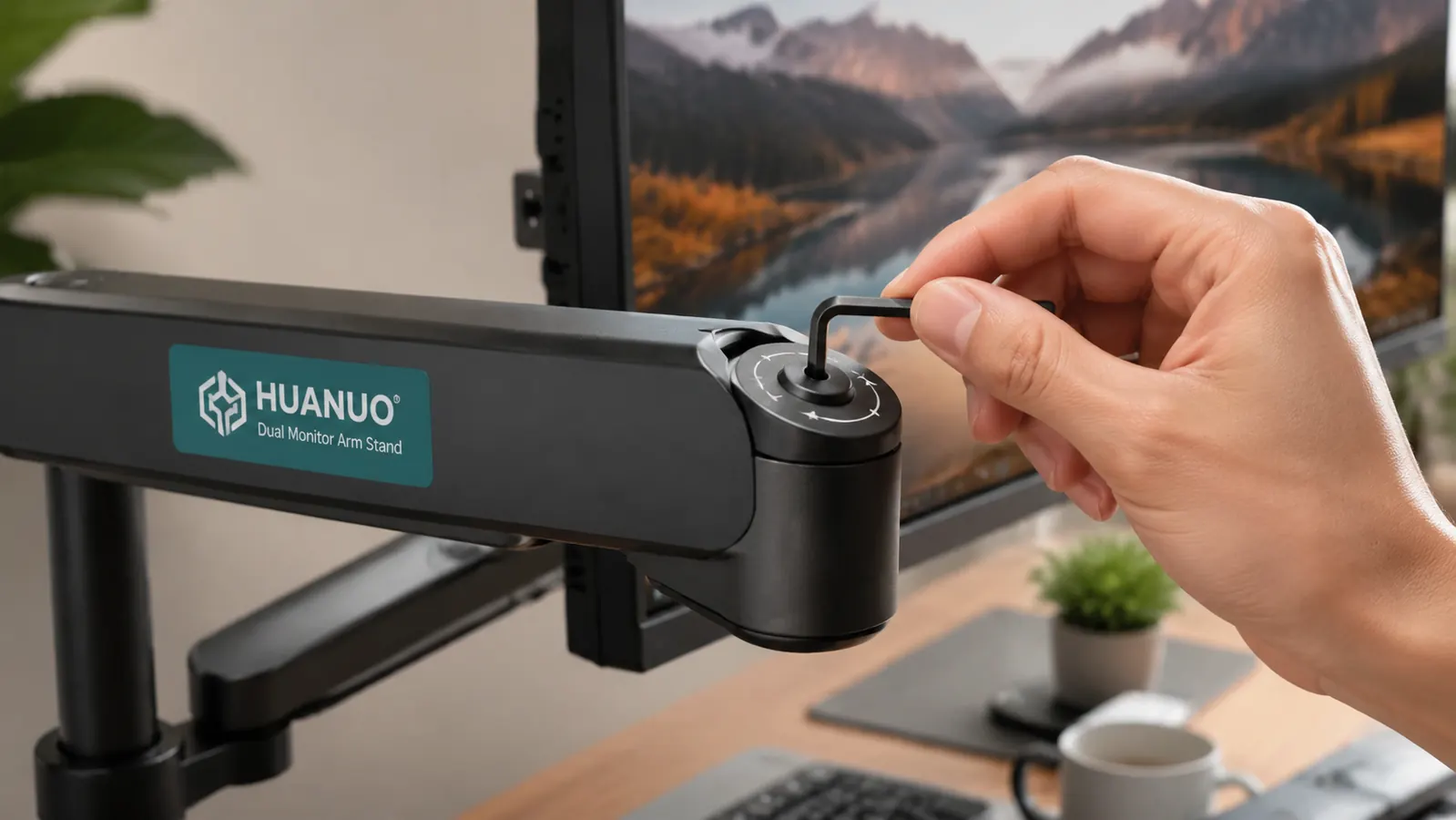
A gas-spring arm, like the Ergotron LX, uses a pressurized piston to hold a screen in position and allow smooth, fingertip repositioning. You lift, it floats. You push down, it lowers smoothly. The experience feels effortless because the gas spring automatically calibrates to the monitor's weight within a range. A spring-tension arm, which is what the HUANUO uses, holds position via a mechanical spring whose tension you set manually with a hex key. When the tension is correctly calibrated for your monitor's weight, the result feels similar: the screen stays where you put it and moves smoothly when you apply deliberate force. When the tension is wrong, the arm either droops (too loose) or is difficult to reposition (too tight).
The most common complaint about this arm is that the screen droops or won't stay put. In almost every case, the tension screw was never adjusted out of the factory setting. Five minutes with a hex key fixes it.
Out of the box, the spring tension is set to a middle default that works for some monitors and not others. With lighter monitors, the arm tends to be too stiff and hard to move. With heavier monitors, it tends to be too loose and the screen drifts downward. The fix is the same in both cases: use the hex key included in the package to adjust the tension screw at the main pivot joint. Turning clockwise increases tension and lifts heavier screens. Counterclockwise reduces tension for lighter panels. Make small adjustments, a quarter turn at a time, test the screen position, and repeat until the arm holds and moves cleanly. The whole process takes under ten minutes once you know what you are doing. The instruction sheet explains it, but the diagrams are small and easy to misread.
Arm Sag Over Time: What to Expect
Spring-tension arms can loosen over time as the spring fatigues under repeated load. How fast this happens depends on how often you reposition the arm and how close to the weight limit you are running. With two lighter monitors and moderate daily repositioning, three months in I have seen no noticeable sag. The tension I set on day two has held. If you are running the arm closer to its maximum rated weight, check the tension monthly for the first few months and retighten as needed. The adjustment is accessible without removing anything, so it is a quick maintenance task rather than a repair.
One specific pattern worth watching: if you frequently put the arm in a fully extended, low-angle position (monitors pushed forward and tilted down toward you), that orientation puts more sustained leverage on the spring than a neutral, mid-height position does. If you work in that configuration regularly, you may find you need to revisit the tension sooner. I noticed this during a two-week stretch where I was doing a lot of detailed spreadsheet work and had both screens pulled forward and tilted. By the end of that stretch, one arm had developed a slight downward drift at the elbow joint. A half-turn of the tension screw fixed it.
Build Quality and Cable Management Compared to Expectations
At this price point, the build quality is genuinely better than the alternatives I tested in the same range. The pole and arm segments are metal, the pivot joints have a solid feel without any lateral wobble, and the VESA head has a positive-click quick-release that feels secure rather than wobbly. I was prepared for a product that felt like its price. It feels more expensive than it is, which is the best thing you can say about a piece of hardware in this category.
Cable management is functional but not elegant. There is a channel along the back of each arm that runs from the VESA head to the pole mount. It holds one or two cables neatly if you take the time to route them properly during install. Thicker cables, like some HDMI cables with large strain relief boots, can be a tight fit. DisplayPort cables tend to work more easily. If you have three cables per monitor, two will route through the channel cleanly and the third will need a velcro strap or a clip at the pole. This is typical for arms in this price range, not a specific shortcoming of the HUANUO.
What I Liked
- Build quality noticeably exceeds what the price suggests
- Spring tension system holds position reliably once correctly calibrated
- VESA quick-release lets you detach a screen in seconds without tools
- Includes both C-clamp and grommet mount options in the box
- Cable channel is genuinely functional for one or two cables per arm
- 34,000 reviews means a documented, well-understood product with known fixes
Where It Falls Short
- C-clamp has real desk-edge requirements that some frame-based desks cannot meet
- Spring-tension mechanism requires manual calibration that the instructions explain poorly
- Per-arm 13.2 lb limit means heavier 27-inch and most 32-inch panels are borderline or out
- Cable routing works best with DisplayPort; fat HDMI cables need encouragement
- VESA adapter only covers 75x75 and 100x100; non-standard mounting patterns not supported
Who This Is For
You are the right buyer for this arm if you have two monitors between 22 and 27 inches, each under 13 pounds, sitting on a desk with a clean flat edge that the C-clamp can grip without obstruction. That profile covers a large portion of home office setups, which is exactly why the HUANUO has the review count it does. If you are upgrading from two stock stands to free up desk space and improve ergonomics, this arm will do what you are hoping it will do. The setup requires patience on the tension calibration, but once it is right, the arm works quietly in the background and you stop thinking about it.
It is also a solid pick if you want to try a monitor arm without spending Ergotron money to figure out whether the format works for your workflow. The price difference between the HUANUO and the Ergotron LX is significant. If you mount the HUANUO, use it for six months, and decide a monitor arm is something you want permanently, you will have a much clearer sense of whether the premium option is worth the upgrade. For a detailed side-by-side look at how they compare, see the HUANUO vs Ergotron monitor arm comparison.
Who Should Skip It
Skip this arm if your desk has a front rail or structural lip that blocks a clean C-clamp seat and you are not willing to drill a grommet hole. Skip it if you are running two heavy 32-inch monitors, particularly curved gaming panels, because you will be fighting the weight limit from day one. Skip it if you expected a gas-spring feel and are not willing to spend ten minutes calibrating a mechanical spring. Skip it if you regularly rotate one screen to portrait orientation and care about cable neatness, because the routing channel does not work cleanly in portrait. And skip it if you need VESA support beyond the standard 75x75 and 100x100 patterns.
For most other home office scenarios, the arm does what it says and does it well enough that the return rate in those use cases is low. The issues above are specific and predictable. If none of them match your setup, the risk of disappointment is low. For a practical guide on the full dual monitor mounting process from start to finish, including how to route cables and adjust height for a sitting or standing desk, the how to set up dual monitors at home guide walks through each step with no assumed knowledge.

Know your desk edge, know your monitor weights, calibrate the tension. Do those three things and this arm earns its spot.
The HUANUO dual monitor arm mounts 13 to 32 inch screens on a no-drill base, includes both C-clamp and grommet mounting options, and ships with the hex key you need for tension calibration. Current pricing moves around, so check before you buy.
Amazon Check Today's Price on Amazon →